AI agent sandbox: one locked-down container per task
Your agent writes a Python script and runs it. Most days that's fine. Then one day it deletes the wrong folder, prints your API keys into a log, or loops for six hours on a paid machine. If that code ran on your laptop or your main server, the damage lands on everything you own.
An AI agent sandbox fixes that. In this guide you'll give every agent task its own small, locked-down container on Hubfly space, take away the Linux permissions a script never needs, put a hard budget around all of it, and find the off switch before you need it. When an agent does something dumb, only a throwaway box is hurt and the bill stays small.
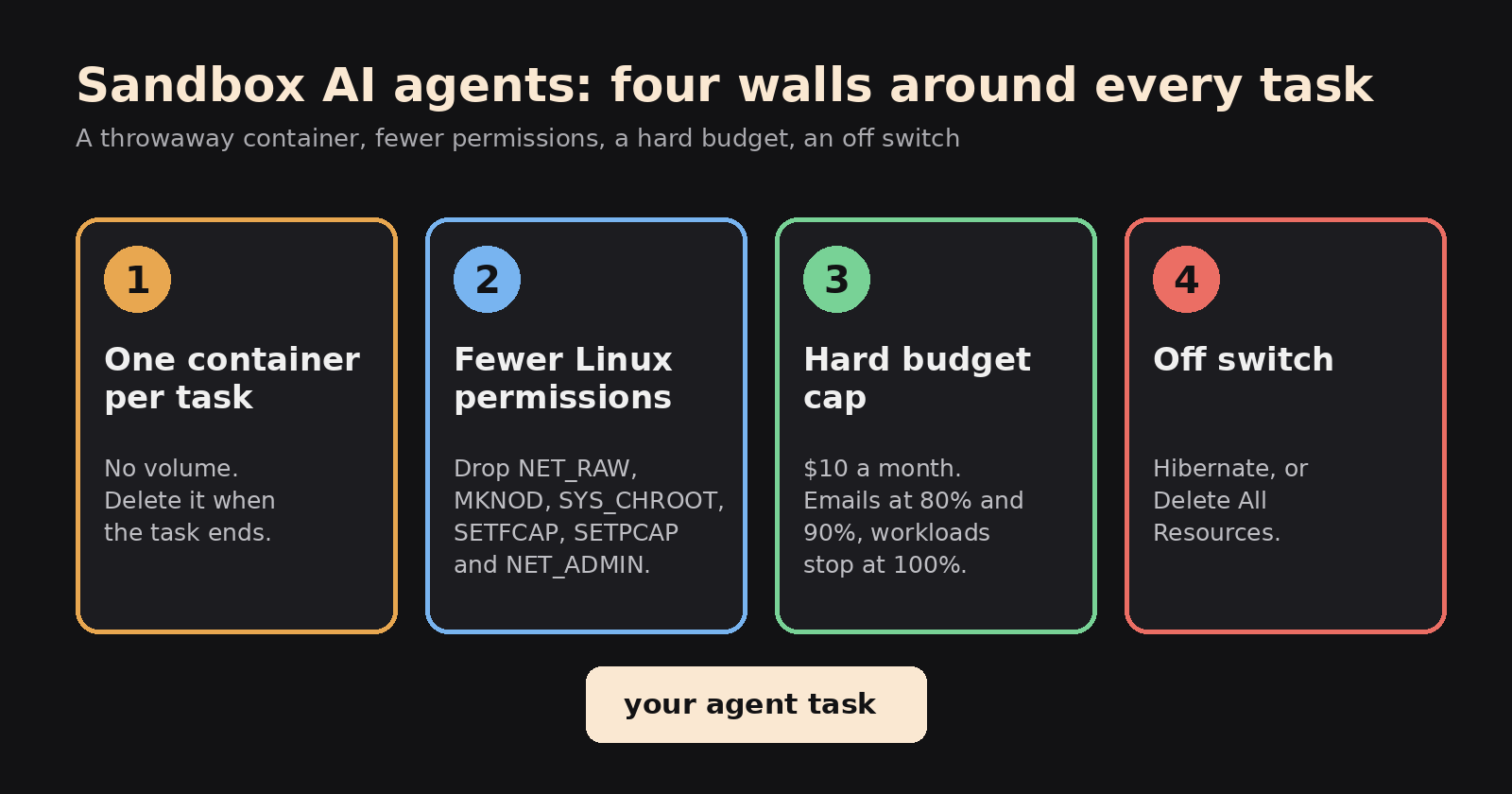
The AI agent sandbox model: four walls around every task
| Wall | What it protects against | Where you set it |
|---|---|---|
| 1. One container per task | A bad task breaking other tasks or your own machine | Create Container |
| 2. Fewer Linux permissions | Code poking at the network or the system | Security Capabilities |
| 3. A hard budget | Runaway loops turning into a big bill | Project budget cap |
| 4. An off switch | Leftover containers after something goes wrong | Danger Zone |
Build them in order. Everything below uses the Hubfly space dashboard; you need an account with the one-time $5 deposit that Hubfly space asks for before you create resources (it's prepaid credit, not a fee).
Step 1: Create a project just for agent work, with a $10 cap
A Hubfly space Cell project holds containers, volumes, environment variables and a budget. Keeping agent work in its own project keeps its private network, its secrets and its bill apart from your real apps.
- In the dashboard, click Create Project.
- Name it
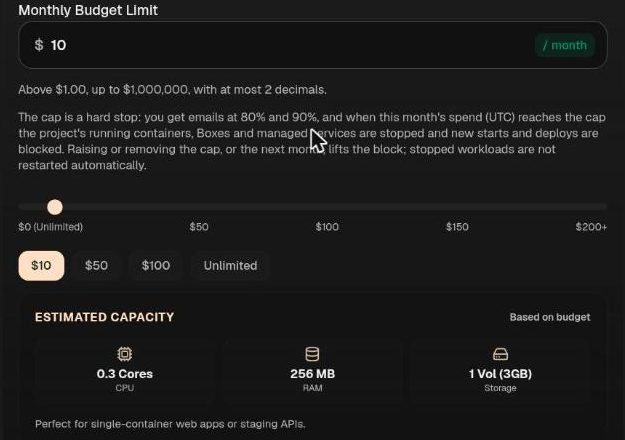
agent-sandbox, keep Cell selected, and pick the region closest to you (for example eu-north). - Open Advanced Options and click the $10 quick cap under Monthly Budget Limit.
- Click Create Project.
Why a cap? Agents don't get tired. A loop that keeps starting containers keeps going until something stops it. On Hubfly space the cap is a hard stop, not just an alert: you get emails at 80% and 90%, and when the month's spend reaches the cap, the project's running containers are stopped and new starts and deploys are blocked. Raising the cap, or the next month, lifts the block, but stopped workloads don't restart on their own.
Step 2: Give each task its own container
Every task the agent runs gets a fresh container. When the task ends, you delete it. Nothing carries over, so a broken or poisoned task can't affect the next one.
- In the project, click Create → Create Container.
- Container name:
agent-task-001. Use one name per task. - Deployment Source: Docker image. Use an image that contains your task runner, like
ghcr.io/your-org/agent-runner:1.0, or a plain runtime likepython:3.12-alpine. With no volume, the task's code has to be inside the image (build it intoagent-runner) or fetched by the command itself. - Resources: pick the tier.
- Shared Tier is free for up to 360 compute hours a month (0.3 vCPU, 256 MB RAM). Its small size is a natural limit: a runaway script can't eat a whole server.
- Dedicated Tier is paid and sized by you (the form starts at 1 vCPU and 1024 MB RAM). Pick it if your account has used its free hours for the month; the dashboard tells you when that happens.
- Configuration → Process Settings → Command: the command the task runs, one argument per line. For a one-shot script:
python
/task/run.py
- Still in Process Settings, set Restart policy to Never. The default is Unless stopped, which restarts a finished task over and over.
Avoid commands that serve files or open ports (like python -m http.server). Anything listening is reachable by every other container in the project, because containers in a project share a private network. If you run untrusted tasks side by side, run them in separate projects.
Step 3: Take away permissions the task doesn't need
Linux "capabilities" are small pieces of root power: opening raw network sockets, creating device files, changing network settings. A script that reads a CSV and calls an API needs almost none of them.
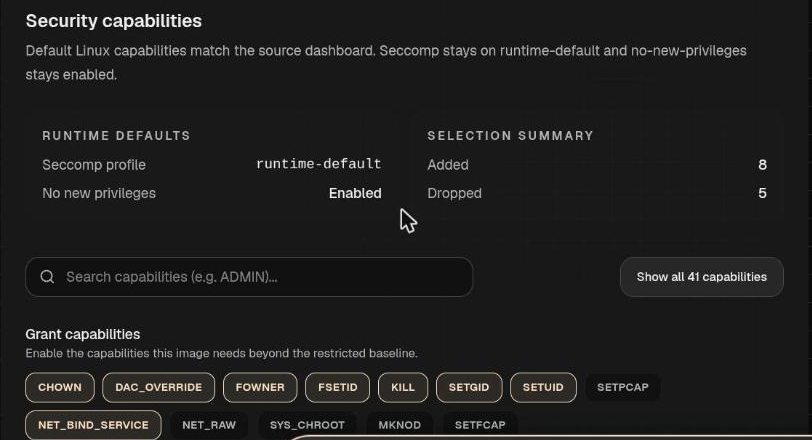
Open Configuration → Security Capabilities. Two protections are already on and stay on:
- Seccomp profile: runtime-default blocks dangerous system calls.
- No new privileges: Enabled stops a process from gaining more power than it started with, even through a
setuidprogram.
Under Drop capabilities, click these five:
| Capability | What it allows | Why an agent task doesn't need it |
|---|---|---|
NET_RAW |
Raw sockets (ping, packet sniffing, spoofing) | Normal HTTP calls work without it |
MKNOD |
Creating device files | Ordinary scripts never create devices |
SYS_CHROOT |
Changing the root folder | A common step in escape tricks |
SETFCAP |
Giving capabilities to files | Lets a program grant itself power later |
SETPCAP |
Changing a process's capabilities | Same risk, at the process level |
Then click Show all 41 capabilities and drop one more: NET_ADMIN. It lets a process add network interfaces and change addresses and routes inside its container. An agent task has no reason to do that, and it isn't in the short default list, so it's easy to miss. The Selection Summary now reads Added 8, Dropped 6.
Keep CHOWN, SETUID, SETGID and DAC_OVERRIDE unless you know your image never switches users or fixes file ownership at start-up. Many official images do, and they fail to start without them.
Click Continue to Storage and add nothing. With no volume, the container runs on "temporary/ephemeral storage", so nothing the task writes survives it. Then Review and Deploy Container.
Step 4: Check what the task can really do
Don't trust a settings screen; ask the container. Put this check in the Command field of a new task container (three lines: sh, -c, then the script), deploy it, and open Logs:
sh
-c
id; grep -E '^Cap(Eff|Bnd)' /proc/self/status; grep -E '^(NoNewPrivs|Seccomp):' /proc/self/status; ping -c1 -W2 1.1.1.1 >/dev/null 2>&1 && echo PING_OK || echo PING_BLOCKED; mknod /tmp/dev-test c 1 3 2>&1 && echo MKNOD_OK || echo MKNOD_BLOCKED; chroot / true 2>&1 && echo CHROOT_OK || echo CHROOT_BLOCKED; ip link add d0 type dummy 2>&1 && echo NETADMIN_OK || echo NETADMIN_BLOCKED; wget -q -O /dev/null -T5 https://example.com && echo EGRESS_OPEN || echo EGRESS_BLOCKED; echo TASK_DONE
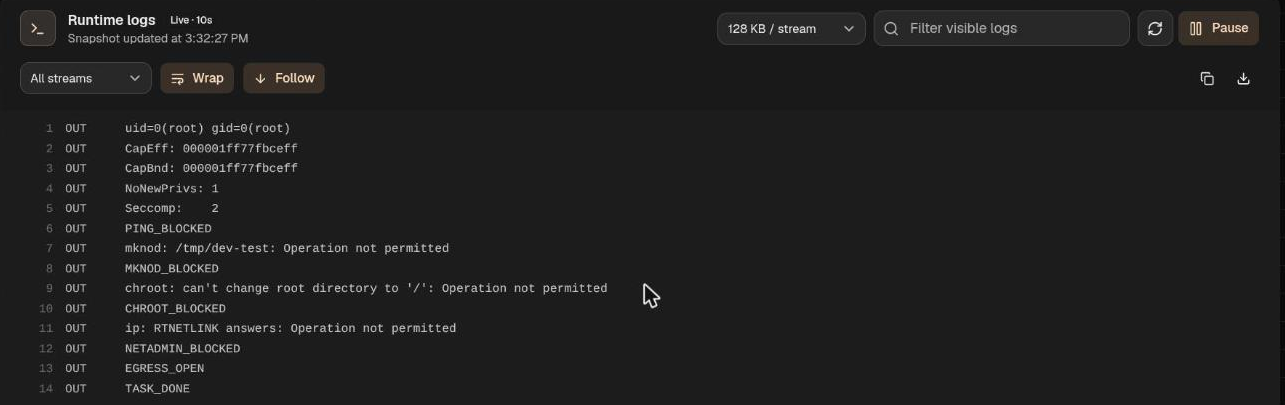
With the six capabilities from Step 3 dropped and the restart policy on Never, the container runs once, stops, and keeps its log. On python:3.12-alpine it looks like this:
uid=0(root) gid=0(root)
CapEff: 000001ff77fbceff
CapBnd: 000001ff77fbceff
NoNewPrivs: 1
Seccomp:    2
PING_BLOCKED
mknod: /tmp/dev-test: Operation not permitted
MKNOD_BLOCKED
chroot: can't change root directory to '/': Operation not permitted
CHROOT_BLOCKED
ip: RTNETLINK answers: Operation not permitted
NETADMIN_BLOCKED
EGRESS_OPEN
TASK_DONE
How to read it:
NoNewPrivs: 1andSeccomp: 2mean both default protections are active (2 is filter mode).PING_BLOCKED,MKNOD_BLOCKED,CHROOT_BLOCKEDandNETADMIN_BLOCKEDshow the drops worked.CapEffis a bitmask of every capability the process holds. Decode it on any Linux machine withcapsh --decode=000001ff77fbceff. It lists more than the 8 granted chips, because the task runs as root inside its own user namespace (cat /proc/self/uid_mapshows container root mapped to an unprivileged ID on the host). Inside the container,mountandhostnameare still refused, but those extra powers are the reason to dropNET_ADMINtoo: with only the five common drops,ip link add d0 type dummysucceeds.EGRESS_OPENmeans the task can reach the internet. That's Step 5.
Once the check passes, use your real task command and delete the check container.
Step 5: Keep the sandbox off the internet (inbound) and out of your secrets
Don't add a domain or a public port to a task container. Without one, nobody outside can reach it: the container page shows No ports exposed, and only containers in the same project can reach its private address (agent-task-001-<id>.eunorth.hubfly.internal).
Outbound is a different story. As the check showed, a task can call any website. Hubfly space doesn't document outbound (egress) controls, so plan as if there are none:
- Never put secrets in a task container's environment. Give it only the one short-lived value the task needs, or nothing.
- Have the task return results instead of pushing them. Your orchestrator reads the output (logs or a file) and decides what to do with it.
- Treat anything the task fetched as untrusted. An agent that downloaded a script will happily run it.
Step 6: Your off switch
Know where this is before you need it. Open the project, click the gear icon next to its name, and choose Danger Zone:
- Hibernate Project removes the project's network, containers, proxy routes, volumes and tunnels, and keeps only the saved configuration for a paid restore later. Use it to stop everything at once; read any logs you need first, because the containers are gone afterwards. It asks you to solve a small sum, and it can take a couple of minutes: the button reads Hibernating… while it works, and then the project shows This project is unavailable until it is restored.
- Delete All Resources permanently removes every container, volume and public route, and lists exactly what it will delete before you confirm. The project itself stays.
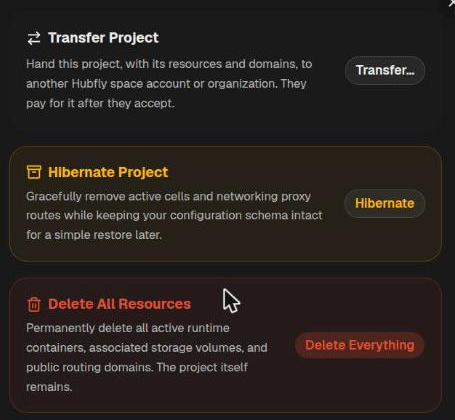

To remove the project completely, use Delete All Resources first: Delete Project stays disabled while the project still has containers, even after hibernating.
What it costs
Rates: $0.004 per vCPU-hour and $0.002 per GB-hour of RAM, billed for the time a container runs.
- Shared tier tasks: free for up to 360 compute hours a month.
- A 10-minute task on the default dedicated size (1 vCPU, 1 GB): (1 × $0.004 + 1 × $0.002) × 10/60 = $0.001. A thousand of them cost about $1.00, plus a fraction of a cent for each task's temporary disk.
- One always-on dedicated worker of the same size (730 hours): 1 × 0.004 × 730 + 1 × 0.002 × 730 = $4.38 a month.
With the $10 cap from Step 1, spend stops at about $10 for the month.
What can go wrong
1. "Your account has used all 360 free compute hours for November, so new free (shared) containers can't be created." The free allowance for shared containers is used up for the month. Click Switch to dedicated, or wait for the allowance to reset on the 1st. A 10-minute dedicated task costs about a tenth of a cent.
2. The task runs again and again. The restart policy is still Unless stopped. Set it to Never in Process Settings for one-shot tasks.
3. The container exits right away after you dropped capabilities. The image needed one of them, usually to switch users or fix file ownership at start-up. Open Logs, look for "Operation not permitted", and add back only that capability (often SETUID, SETGID or CHOWN).
4. Delete Project is greyed out. The project still has containers. Run Delete All Resources first, then Delete Project.
5. Everything stopped and won't start. The budget cap was reached. Check the project's General & Budget page, raise the cap if the spend was expected, then start the containers again yourself; they don't restart automatically.
6. Hibernate seems to do nothing. It can take a couple of minutes. If the button hasn't changed to Hibernating… after about a minute, confirm once more, then wait for This project is unavailable until it is restored.
FAQ
How do I safely run code generated by an AI agent?
Run each task in its own fresh container with no volume, drop the Linux capabilities the code doesn't need, keep secrets out of its environment, cap the spend, and delete the container when the task ends.
Which Linux capabilities can I drop for an agent task?
For most scripts: NET_RAW, MKNOD, SYS_CHROOT, SETFCAP, SETPCAP and NET_ADMIN. Keep CHOWN, SETUID, SETGID and DAC_OVERRIDE until you've confirmed the image starts without them.
How do I check which capabilities a container really has?
Run grep Cap /proc/self/status inside it and decode the CapEff value with capsh --decode=<value>. Then try one blocked action, like ping, to confirm.
Does a container stop an AI agent from reaching the internet?
No. A container without a public port can't be reached from outside, but it can still make outbound requests. Keep secrets out of it and treat anything it downloads as untrusted.
How much does a sandbox per task cost?
On Hubfly space, shared containers are free for up to 360 compute hours a month. A 10-minute task on a dedicated 1 vCPU / 1 GB container costs about $0.001.
How do I stop all agent containers at once?
Open the project's Danger Zone and use Hibernate Project to keep only the configuration (this also deletes volumes), or Delete All Resources (button Delete Everything) to remove all containers, volumes and public routes. A budget cap also stops everything automatically when it's reached.
Is a container enough, or do I need a VM?
For scripts that only read files and call APIs, a locked-down container is a reasonable wall. If tasks need root-level system changes, kernel modules or long-lived state, use a separate VM per agent instead, such as a Hubfly space Box.
Go further on Hubfly space
- Let a coding agent deploy without breaking production: how to let an AI coding agent deploy your app safely.
- One wallet and one key per agent or customer: isolated tenants with Hubfly space sub-accounts. Revoking a tenant's key cuts off that one agent without touching anything else.
- Automate create and remove per task: the containers API reference has the same tier, restart and security fields as the dashboard.
- Health checks for longer-running agent workers: Docker health checks that catch real problems.
By Octave · drafted with AI, tested on Hubfly · Last updated 10 November 2026
Comments
Join the discussionNo comments yet. Be the first to comment.